
Create An Email Survey That Gets More & Better Responses
Learn how to make an engaging survey that your email subscribers will enjoy answering, and share it in your next email quickly and easily.
How to Create & Send an Email Survey
Create and send an email survey in three easy steps:
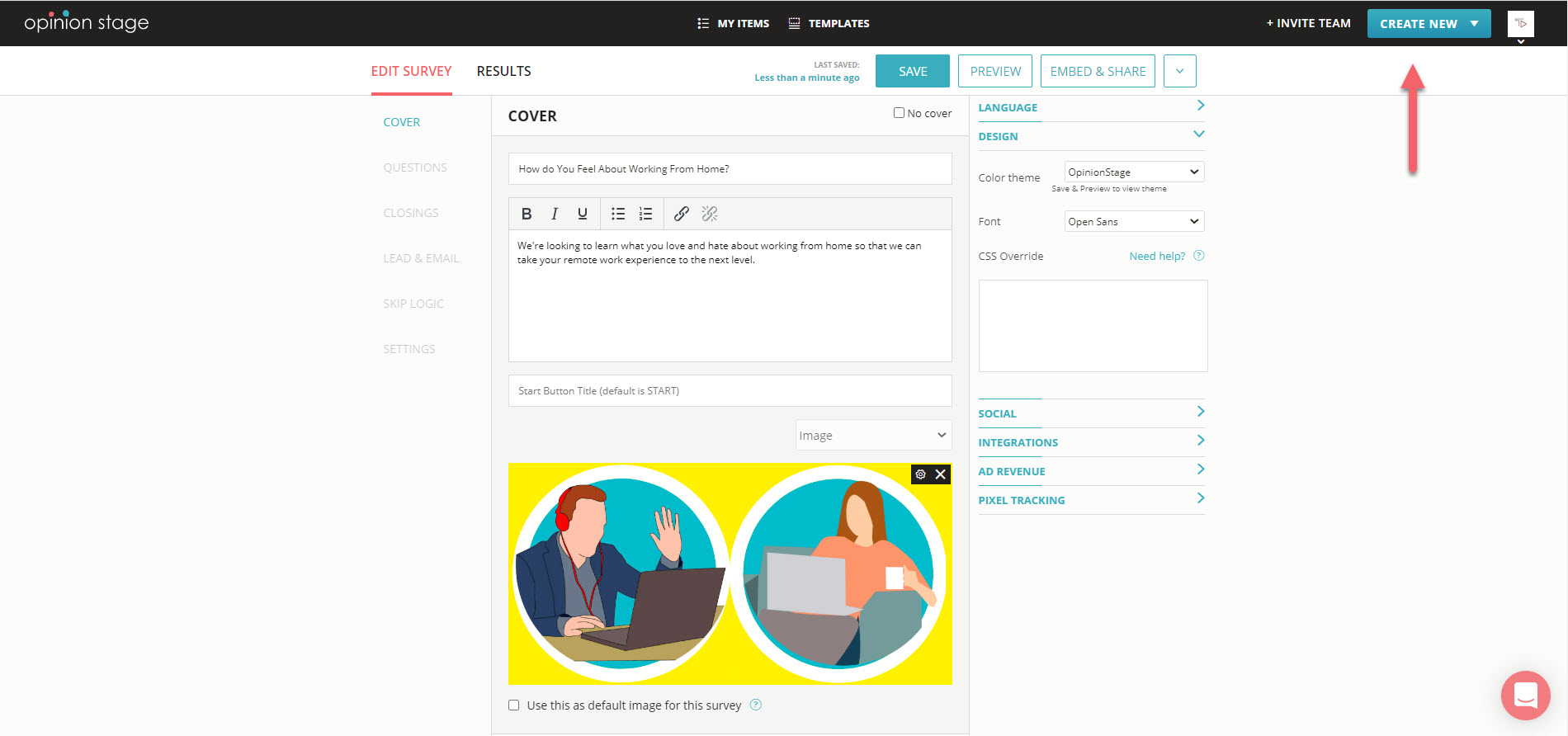
2. Copy link
Locate the survey on the items dashboard, click the “Embed & Share” button, and then the “Share Link” tab. Now copy the survey link.
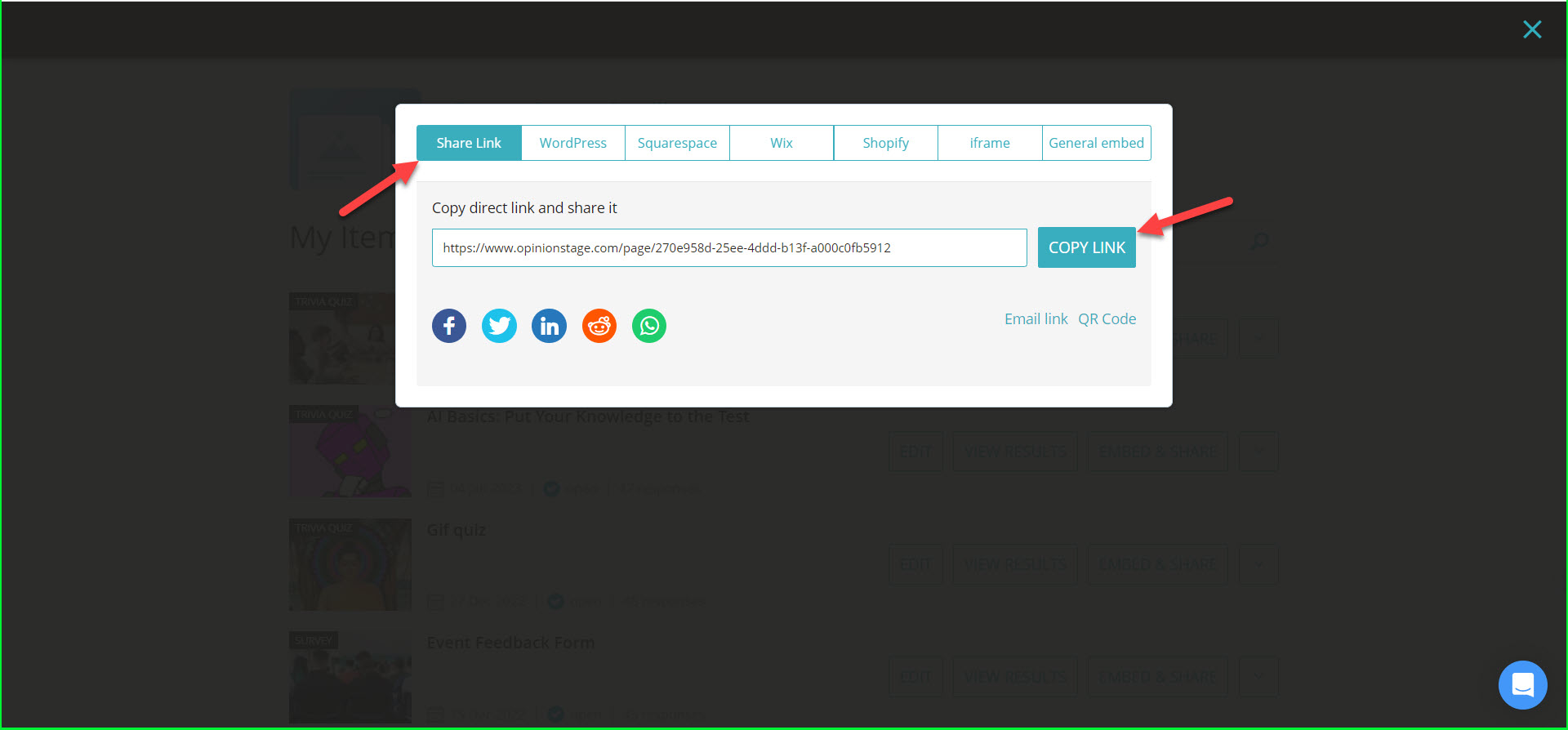
3. Share in email
Paste the link in the body of the email and send it. You can create a regular hyperlink, or use an image link to get more clicks.
Best Practices for Running Email Surveys
Here are some tips that will help you create email surveys that perform exceptionally well.
Align Survey Questions with Your Goal
Define in detail what is the information you want to gather. Then make sure the questions are aligned with the goal. Use close-ended questions and open-ended questions accordingly.
Keep the Survey Short
Users usually won’t spend the time needed to answer a long survey. Try to shorten the number of questions in your survey as much as possible. We usually recommend restricting your survey to 5-15 questions.
Use Visually Pleasing Images
Using pleasing images in the survey will increase user engagement and will get you more survey completions. Make use of an appealing survey theme and cover image. You can also add images to each of the question answers.
Make It Easy to Answer
The answers to each question should cover all the options and should not overlap. If you don’t know what all the possible answers can be, make it an open-ended question. Make the questions and answers short and clear.
Learn more about our survey maker.
Quiz Types & Tools
You can easily do it yourself, no need for a developer
Create a Survey